
Repurposing vidéo
How to Create Clips With AI: A Practical Guide for Creators
Learn how to create clips with AI in minutes, not hours. This guide covers tools, workflows, and practical tips to turn long videos into scroll-stopping short-form content.
 Equipe ViralCut PRO23 juil 20265 min de lecture
Introduction
If you're sitting on hours of podcast, webinar, or YouTube footage, learning how to create clips with AI can save you dozens of hours every month. Instead of manually scrubbing through timelines to find the best moments, AI-powered tools now detect hooks, add subtitles, and reframe video for vertical platforms automatically. This guide walks you through exactly how the process works, which tools fit different needs, and how to avoid the common mistakes that make AI-generated clips fall flat.
Why Creators Are Moving to AI to Create Clips
Repurposing long-form content into short clips used to require a video editor, a scriptwriter to pick highlights, and hours of manual subtitle syncing. AI collapses that workflow into a few clicks. Modern clipping tools use speech-to-text transcription, sentiment analysis, and engagement scoring to identify the segments most likely to hook viewers in the first three seconds — which is still the biggest factor in short-form retention.
Beyond speed, there's a consistency argument. Creators who publish clips daily or several times a week need a repeatable system, not a one-off editing session. AI clipping tools give you that repeatability: the same quality of captions, framing, and pacing every time, regardless of how tired or rushed you are.
What AI Actually Does When You Create Clips
It helps to understand what's happening under the hood so you can judge output quality and know when to intervene manually.
- Transcription: the tool converts spoken audio into timestamped text, usually with high accuracy for clear audio.
- Highlight detection: an algorithm scores segments based on speech patterns, keywords, laughter, pauses, and emotional tone to flag potential 'viral moments.'
- Auto-reframing: vertical cropping that tracks faces or active speakers so content fits 9:16 without losing the subject.
- Subtitle generation and styling: burned-in captions with customizable fonts, colors, and animation to match platform trends.
- Export presets: automatic formatting for TikTok, Instagram Reels, YouTube Shorts, and LinkedIn video specs.
Step-by-Step: How to Create Clips With AI
Here's a practical workflow you can apply regardless of which tool you choose.
Step 1: Upload Your Source Video
Start with your longest, richest source — a podcast episode, webinar recording, or livestream. Longer source material gives the AI more raw material to identify strong moments from.
Step 2: Let the AI Transcribe and Analyze
The tool will generate a transcript and run its highlight-detection model. This typically takes a few minutes depending on video length. Platforms like ViralCut PRO process this step automatically in the background so you can queue multiple videos at once.
Step 3: Review Suggested Clips
Don't blindly accept every AI suggestion. Skim the top 10-15 recommended segments and prioritize ones with a clear hook in the first sentence, a complete thought (not cut mid-idea), and emotional or informational payoff.
Step 4: Edit Captions and Framing
Fix any transcription errors, especially names, brand terms, or technical jargon the AI might mishear. Adjust the vertical crop if it's tracking the wrong speaker in multi-person videos.
Step 5: Add a Strong Opening Text Overlay
AI is good at finding content but less reliable at writing a scroll-stopping first line. Manually tweak the on-screen hook text to make the value proposition obvious within the first two seconds.
Step 6: Export and Schedule
Export in the correct aspect ratio for each platform and schedule posts during your audience's peak activity hours rather than dumping everything at once.
Comparing Approaches: Manual Editing vs AI Clipping
Understanding the trade-offs helps you decide how much to automate.
- Manual editing: full creative control, but slow — often 1-2 hours per clip when you include transcription and captioning.
- Basic AI captioning tools: fast subtitles, but you still have to find and cut clips yourself.
- Full AI clipping platforms: transcription, highlight detection, reframing, and captions in one pass, typically producing a batch of clips from a single upload in minutes.
- Hybrid workflow (recommended): let AI do the heavy lifting on transcription, detection, and formatting, then spend 10-15 minutes per clip on human review and hook refinement.
Practical Tips to Improve AI-Generated Clips
AI clipping tools are powerful, but a few habits noticeably improve output quality.
- Feed the AI clean audio — background noise reduces transcription accuracy and therefore highlight detection quality.
- Speak in complete thoughts during recording; rambling makes it harder for AI to isolate clean, self-contained clips.
- Always proofread captions before publishing, especially for brand names, numbers, and technical terms.
- Test multiple hook variations from the same source clip to see which framing performs best.
- Keep clips between 30-90 seconds for most platforms unless the content genuinely demands more time.
Common Mistakes When Creating Clips With AI
The most frequent error is publishing AI output without any human review — a mistranscribed word or awkward cut can undermine credibility. Another common mistake is choosing clips based purely on the AI's engagement score without checking if the segment makes sense out of context. Finally, many creators skip A/B testing captions styles and hooks, missing an easy way to improve click-through and watch time over multiple uploads.
Conclusion
Learning how to create clips with AI isn't about replacing your judgment — it's about removing the repetitive, time-consuming parts of editing so you can focus on strategy and storytelling. Start with a hybrid workflow: let AI handle transcription, highlight detection, and formatting, then apply your own eye for hooks and context before publishing. If you want this entire pipeline handled in one place, ViralCut PRO is built specifically to turn long-form recordings into ready-to-post short clips with subtitles, reframing, and export presets for every major platform — worth trying on your next podcast or webinar recording.
Questions fréquentes
What is the best way to create clips with AI from a podcast?
Upload the full episode to an AI clipping tool that transcribes audio and detects highlight-worthy segments, then review the top suggestions and refine the opening hook text before exporting for each platform.
Is it free to create clips with AI?
Many tools offer free tiers with limited exports or watermarks, but full-featured platforms with unlimited clipping, custom captions, and multi-platform formatting usually require a paid subscription.
How accurate are AI-generated captions?
Accuracy is generally high for clear audio in common languages, but proper nouns, technical jargon, and heavy accents can cause errors, so a quick manual review before publishing is recommended.
Can AI choose the best moments from a long video automatically?
Yes, AI uses speech patterns, pacing, and sentiment analysis to flag likely highlights, but human review is still valuable to ensure the chosen segment makes sense without additional context.
What video length works best when using AI to create clips?
Longer source videos, such as 30-90 minute podcasts or webinars, give AI more material to identify strong standalone moments, typically producing several usable 30-90 second clips per upload.
Essayez sur votre contenu
Importez une vidéo. ViralCut PRO trouve les meilleurs clips.
Analyse, hooks, sous-titres, recadrage et exports prêts à publier en quelques minutes.
Créer mes clips gratuitementÀ lire ensuite
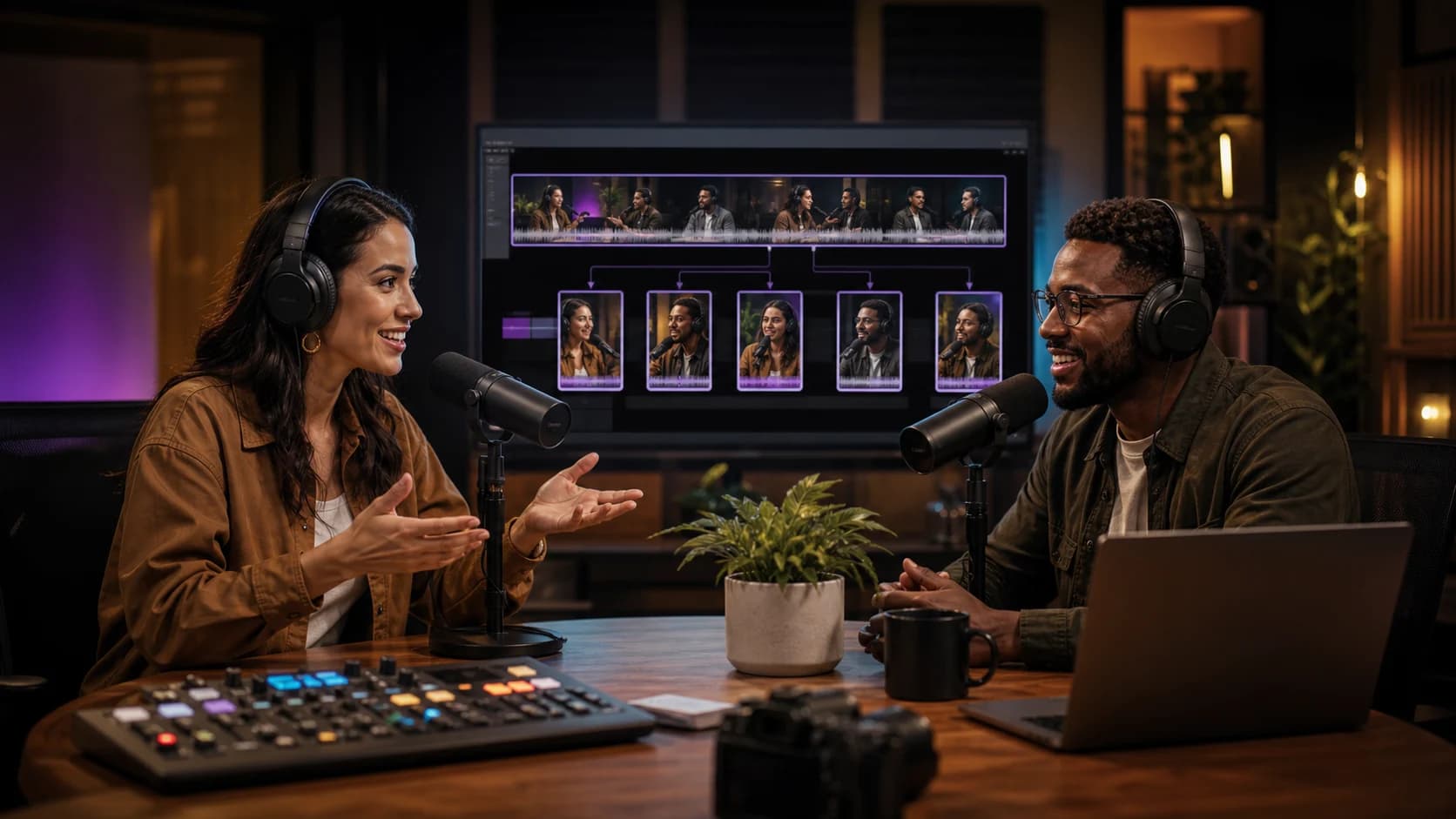 Guide complet
Comment transformer une vidéo longue en 10 clips courts performants
Methode complete pour identifier les meilleurs moments, creer des accroches puissantes et optimiser chaque clip pour TikTok, Reels et YouTube Shorts.
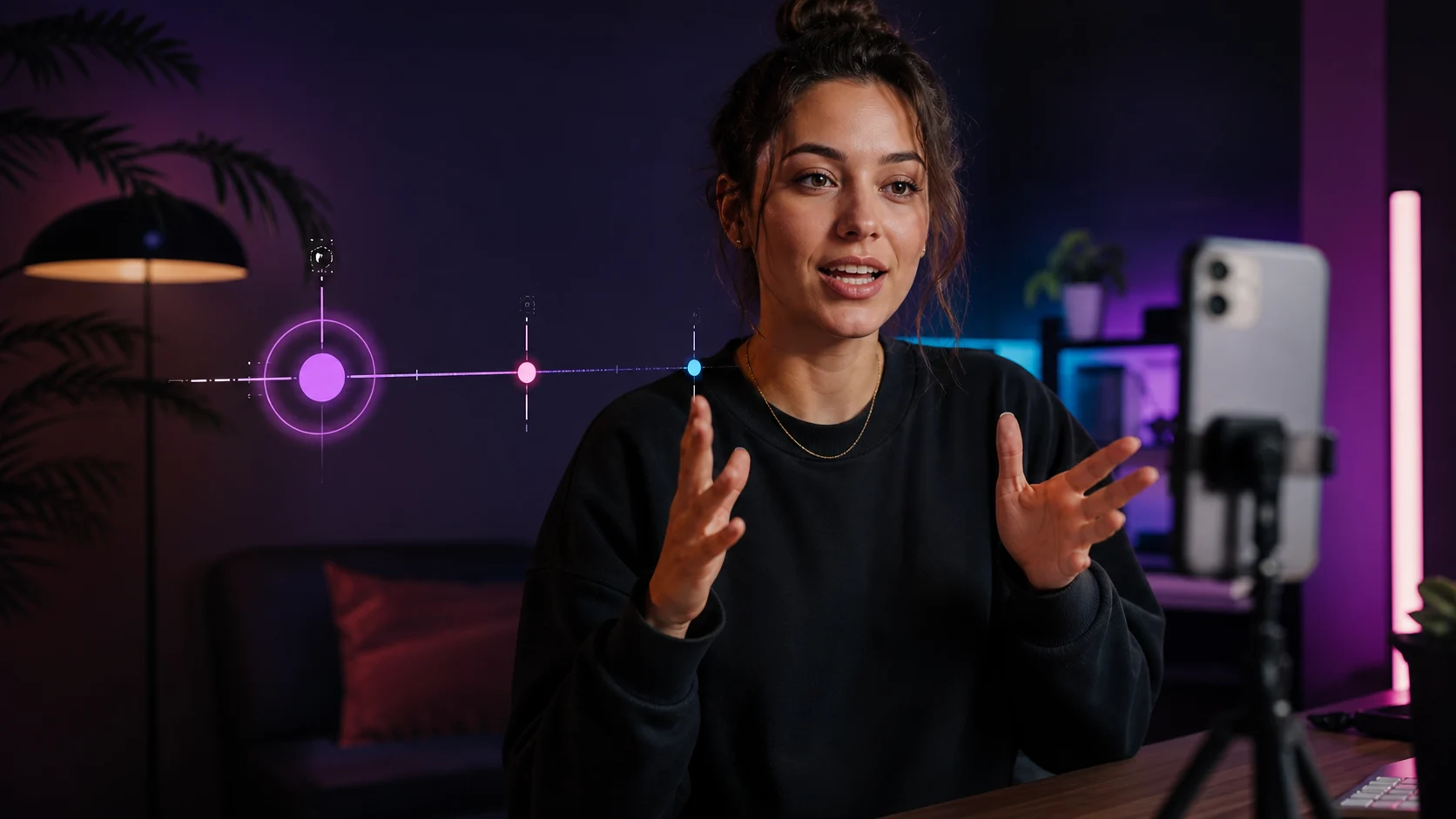 TikTok & Reels
12 accroches qui retiennent l'attention dès les trois premières secondes
Exemples concrets et formules qui captivent des l'instant zero sans tomber dans le sensationnalisme.
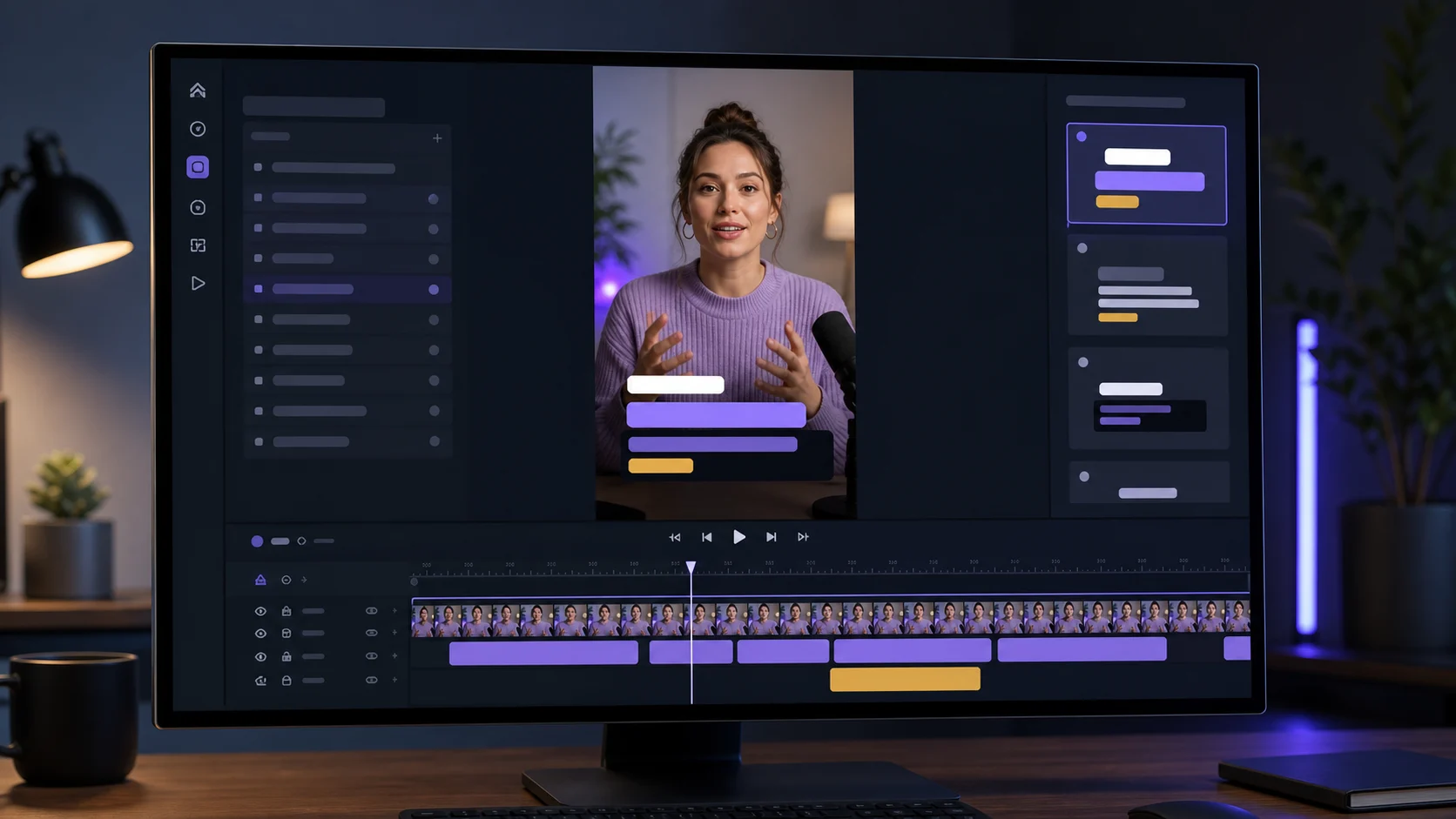 Sous-titres
Créer des sous-titres dynamiques sans surcharger la vidéo
Design, lisibilite et rythme : les bonnes pratiques pour des sous-titres qui engagent sans prendre toute la place.
Newsletter ViralCut