
Montage
How to Add Automatic Subtitles to a Video (Step-by-Step Guide)
Learn how to add automatic subtitles to a video quickly and accurately, with practical tools, a step-by-step workflow, and tips to boost watch time on TikTok, Reels, and YouTube Shorts.
 Equipe ViralCut PRO26 juil 20265 min de lecture
Introduction
If you want more views, watch time, and accessibility, you need to add automatic subtitles to a video before you publish it. Most people scroll social feeds with the sound off, and platforms like TikTok, Instagram Reels, and YouTube Shorts reward content that keeps viewers watching. Auto-generated captions solve both problems at once: they make your message clear without audio, and they help the algorithm understand and rank your content. This guide walks you through exactly how to add automatic subtitles to a video, which tools work best, and how to avoid common mistakes that hurt readability and engagement.
Why You Should Add Automatic Subtitles to a Video
Subtitles aren't just a nice-to-have anymore — they're expected. Silent autoplay, noisy environments, and accessibility needs mean a large share of your audience relies on text to follow along. Adding automatic subtitles to a video also helps non-native speakers understand your content, and it gives search engines more text to index, which can improve discoverability on platforms like YouTube.
- Increases watch time because viewers stay engaged even without sound
- Improves accessibility for deaf, hard-of-hearing, and non-native audiences
- Boosts SEO by giving platforms readable text tied to your video
- Makes clips feel more professional and polished
- Helps repurpose long-form content into short, subtitled clips for social media
How Automatic Subtitle Generation Works
Automatic subtitle tools use speech-to-text AI (usually built on automatic speech recognition, or ASR, models) to transcribe spoken audio into timed text. The software analyzes your audio track, converts speech into words, and syncs each line with the exact timestamp it was spoken. Modern tools also detect speaker changes, punctuation, and even emphasis, so the final captions look natural rather than robotic.
Accuracy Depends on a Few Key Factors
Not all automatic subtitles are equally accurate. Before you trust the output, keep these factors in mind:
- Audio clarity — background noise or overlapping voices reduce accuracy
- Accents and dialects — some tools handle certain accents better than others
- Technical vocabulary — niche jargon, brand names, or acronyms may need manual correction
- Speaking pace — very fast speech can cause dropped or merged words
Step-by-Step: How to Add Automatic Subtitles to a Video
Here's a simple, repeatable workflow you can use regardless of which tool you choose.
Step 1: Upload Your Video File
Start with your raw footage — a podcast recording, webinar, or long-form YouTube video. Most subtitle tools accept common formats like MP4, MOV, or MP3 for audio-only files.
Step 2: Let the AI Transcribe the Audio
The tool will run speech recognition on your audio track and generate a first draft of subtitles with timestamps. This usually takes just a few minutes, even for long videos.
Step 3: Review and Edit the Captions
Always proofread the auto-generated text. Fix misheard words, add correct punctuation, and adjust timing if a line appears too early or lingers too long.
Step 4: Style Your Subtitles
Choose a font, size, and color that's easy to read on mobile screens. Many creators use bold, high-contrast captions with keyword highlighting to keep viewers hooked — this is especially effective for short-form clips.
Step 5: Export and Publish
Export your video with burned-in (hardcoded) subtitles for social platforms, or as a separate SRT/VTT file if you're uploading to YouTube and want toggleable captions.
Best Tools to Add Automatic Subtitles to a Video
There are several solid options depending on your workflow and goals:
If your main goal is repurposing long-form content into multiple short clips quickly, a specialized tool like ViralCut PRO saves significant editing time compared to manually subtitling each clip in a general-purpose editor.
- YouTube Studio — free, built-in auto-captions, good for standard uploads but limited styling
- CapCut — free mobile/desktop editor with decent auto-subtitles and basic styling
- Descript — text-based video editing with strong transcription accuracy, great for podcasts
- ViralCut PRO — designed specifically for turning long videos, podcasts, and webinars into short, subtitled clips optimized for TikTok, Reels, and Shorts, with automatic transcription, smart styling, and export presets built for social algorithms
Quick Comparison: Manual vs. Automatic Subtitles
Understanding the trade-offs helps you choose the right approach for each project.
- Manual subtitles: highest accuracy, full control over styling, but very time-consuming for long videos
- Automatic subtitles: fast, scalable, and 90%+ accurate in most cases, but require a quick review pass
- Hybrid approach (recommended): generate automatically, then manually edit for accuracy and tone — the fastest way to get near-perfect results
Practical Tips for Better Automatic Subtitles
A few small adjustments make a big difference in how professional your subtitles look and how well they perform.
- Keep captions short — 1-2 lines and under 40 characters per line for mobile readability
- Use high contrast text (white with a dark outline or background box) so it's readable on any footage
- Sync captions precisely with speech — even a half-second delay feels off to viewers
- Highlight keywords or key phrases in a different color to guide attention
- Always double-check names, brand terms, and numbers, since these are common AI errors
Subtitle Checklist Before You Publish
- Transcription reviewed for accuracy
- Timing synced with spoken audio
- Font size readable on a small mobile screen
- Contrast and color tested against your video background
- File exported in the correct format for your target platform
Conclusion
Learning how to add automatic subtitles to a video is one of the highest-leverage skills for modern content creators — it takes minutes, dramatically improves accessibility, and keeps viewers watching longer. Start with an AI transcription tool, review the output carefully, style it for mobile, and export it in the right format for your platform. If you're regularly turning podcasts or webinars into short clips, a dedicated tool like ViralCut PRO can automate most of this process so you can focus on creating instead of editing.
Questions fréquentes
What is the fastest way to add automatic subtitles to a video?
Using an AI-powered transcription tool is the fastest method. Upload your video, let the software generate timed captions automatically, then do a quick manual review to fix any errors before exporting.
Are automatic subtitles accurate enough to publish without editing?
Most modern tools achieve 90% or higher accuracy with clear audio, but you should still review the transcript for misheard words, names, and punctuation before publishing, especially for professional content.
Can I add automatic subtitles for free?
Yes. Platforms like YouTube Studio and apps like CapCut offer free automatic subtitle generation, though styling options and export flexibility are more limited compared to paid tools.
What file format should subtitles be exported in?
For platforms like YouTube, export an SRT or VTT file so captions remain toggleable. For social media clips on TikTok, Reels, or Shorts, it's best to burn subtitles directly into the video (hardcoded) for consistent display.
Do automatic subtitles improve video performance on social media?
Yes. Since many viewers watch with sound off, subtitles keep them engaged longer, which increases watch time and can positively influence how platforms distribute your content.
Essayez sur votre contenu
Importez une vidéo. ViralCut PRO trouve les meilleurs clips.
Analyse, hooks, sous-titres, recadrage et exports prêts à publier en quelques minutes.
Créer mes clips gratuitementÀ lire ensuite
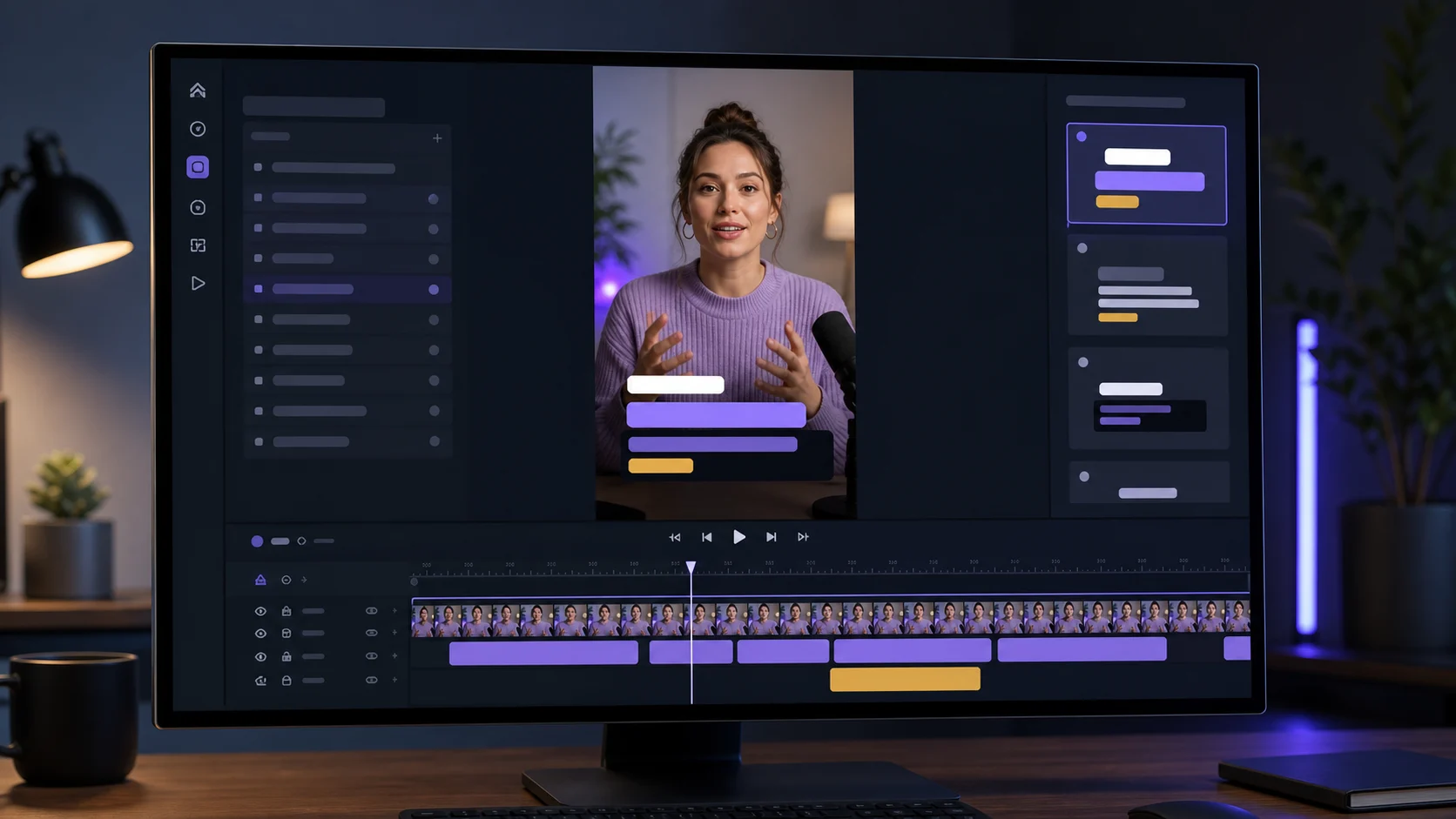 Sous-titres
Créer des sous-titres dynamiques sans surcharger la vidéo
Design, lisibilite et rythme : les bonnes pratiques pour des sous-titres qui engagent sans prendre toute la place.
 TikTok & Reels
12 accroches qui retiennent l'attention dès les trois premières secondes
Exemples concrets et formules qui captivent des l'instant zero sans tomber dans le sensationnalisme.
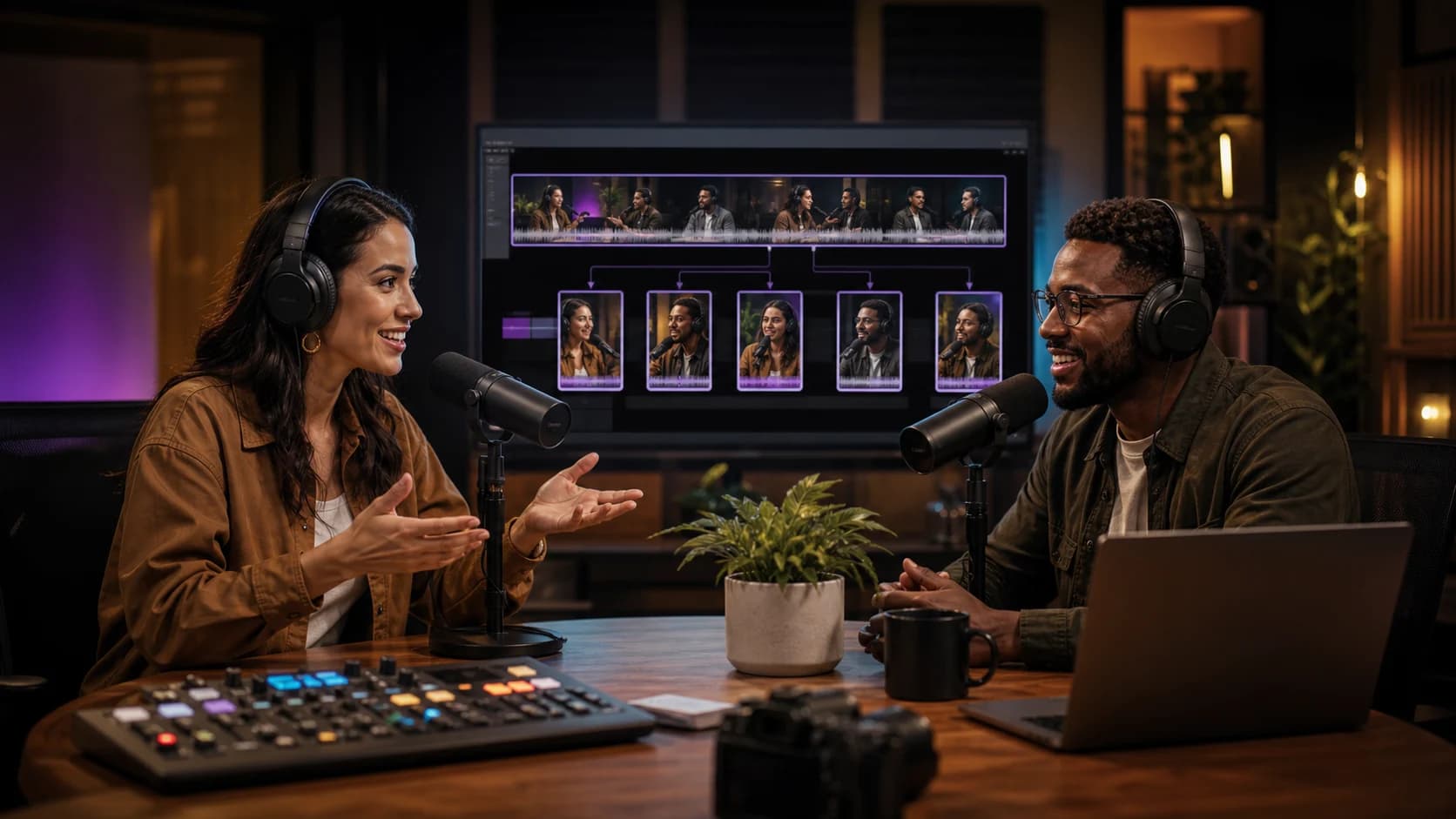 Guide complet
Comment transformer une vidéo longue en 10 clips courts performants
Methode complete pour identifier les meilleurs moments, creer des accroches puissantes et optimiser chaque clip pour TikTok, Reels et YouTube Shorts.
Newsletter ViralCut